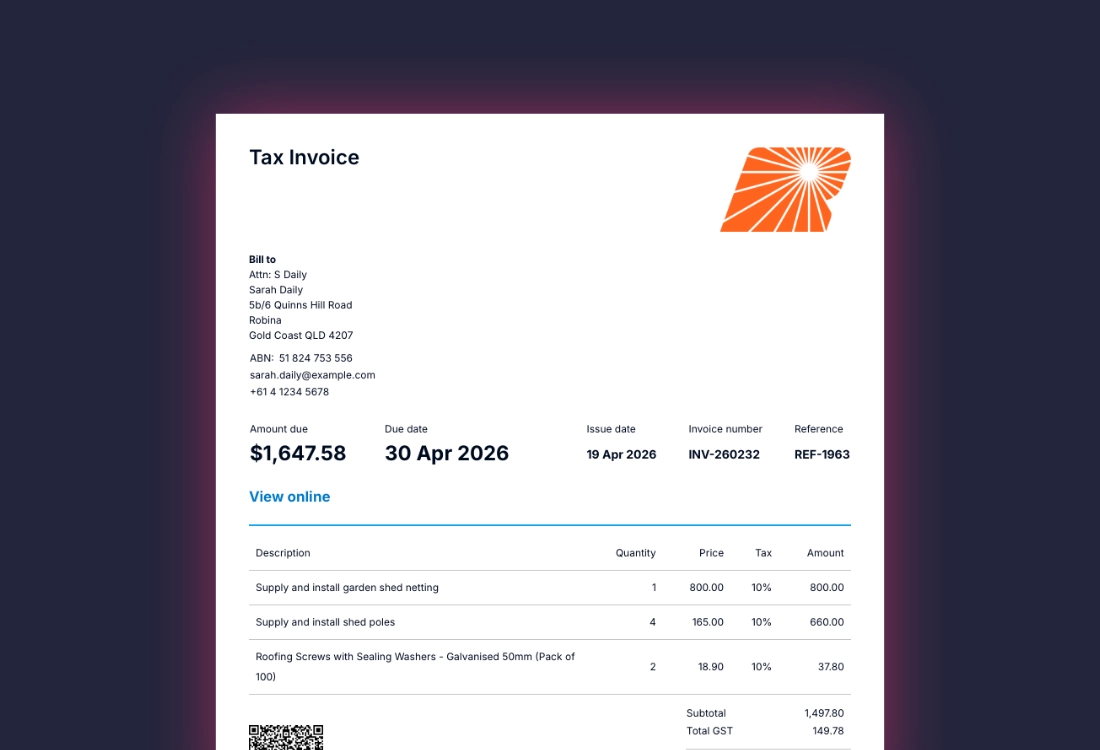
Most businesses start out using Xero’s default invoice templates. They work, but they’re fairly basic and don’t always reflect your brand or include the information you need.
The good news is that Xero gives you several ways to customise your invoices, quotes and statements, ranging from simple tweaks through to fully customised document templates.
The Current Invoice Landscape in Xero
Xero currently offers three main approaches to invoicing, each with different levels of flexibility.
1. Standard Invoicing (Legacy)
This is the default option, at least for now, within Xero. You can:
- Add your logo
- Adjust colours and layout
- Set payment terms
- Include basic messaging
For many small businesses, this is sufficient. It’s quick to set up, requires no technical knowledge and covers the minimum features most businesses need for a professional invoice.
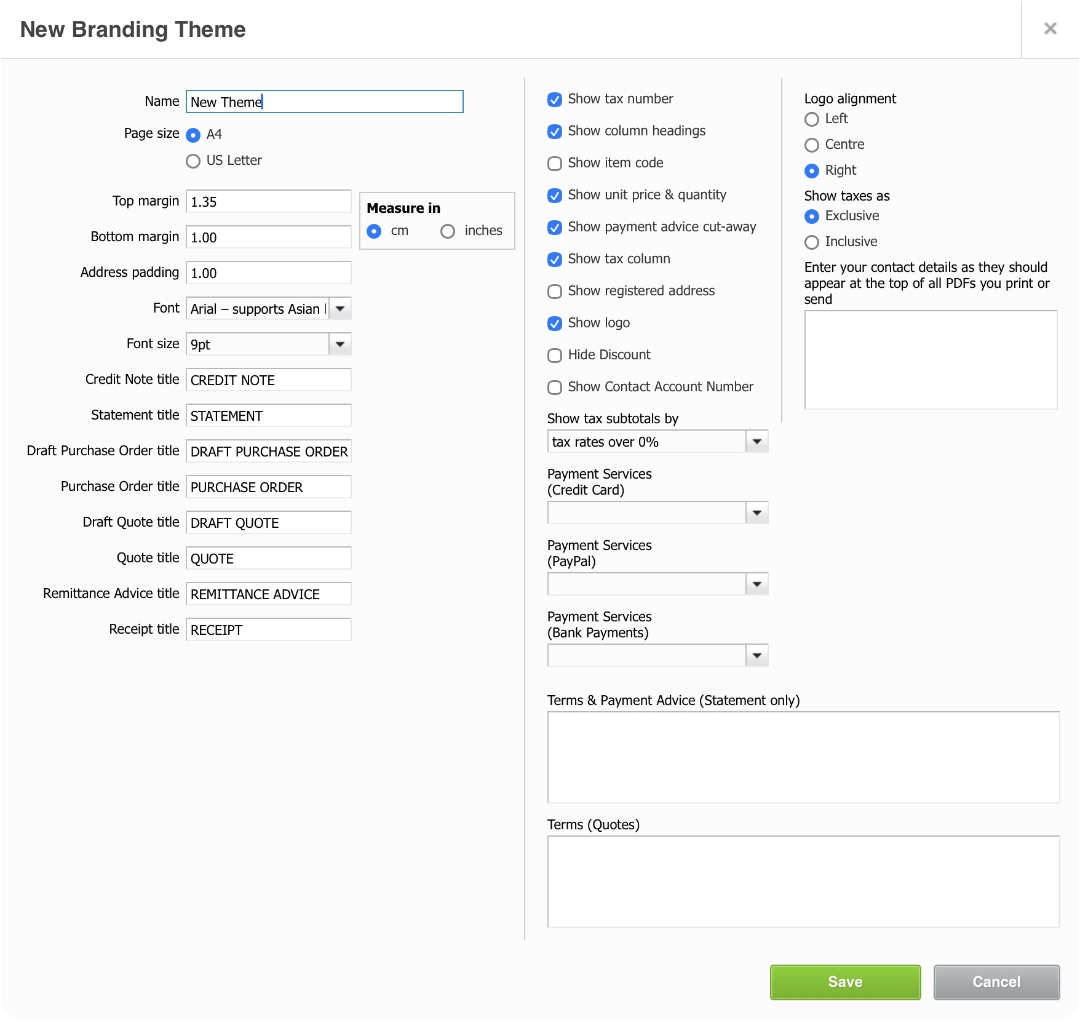
Legacy Invoice Setup in Xero
2. New Invoice System
Xero subscribers who have access to the newer invoicing experience will notice improvements such as:
- A more streamlined setup process
- More customisation options
- A cleaner and more modern layout
Even so, some businesses still need more control than the standard setup provides.
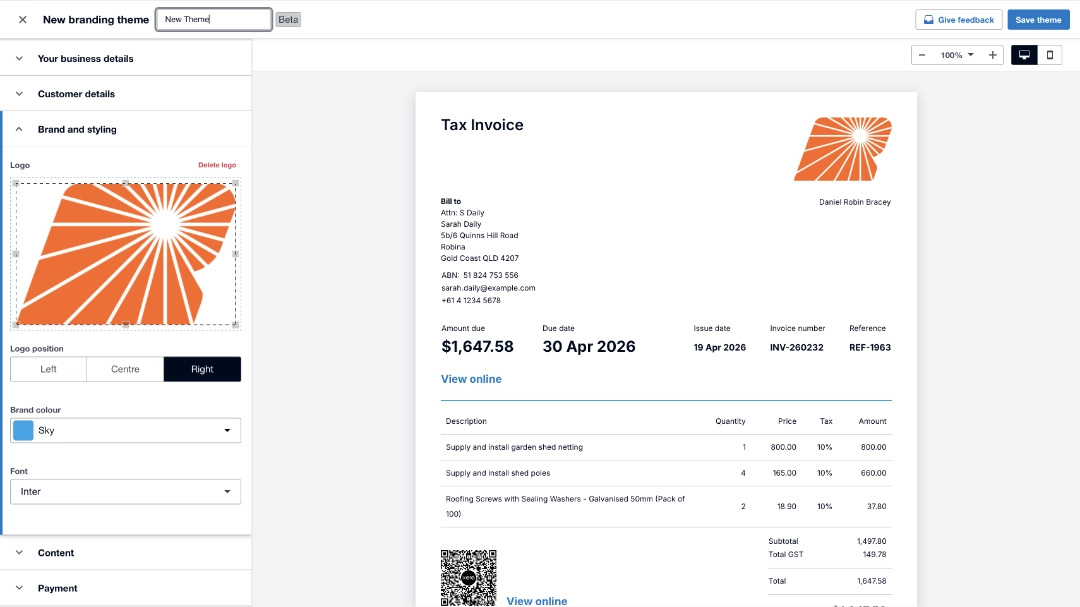
New Invoice Setup Interface in Xero
3. Custom Invoice Templates
This is where you unlock full control. Xero’s advanced templates allow you to:
- Design invoices in Microsoft Word
- Control layout, structure and formatting
- Add custom sections and fields
- Create multi-page documents such as terms and conditions
These templates are uploaded back into Xero and used as your branding theme when generating invoices. They rely on DOCX files with embedded fields, also known as mail merge fields, which Xero automatically populates with your invoice data.
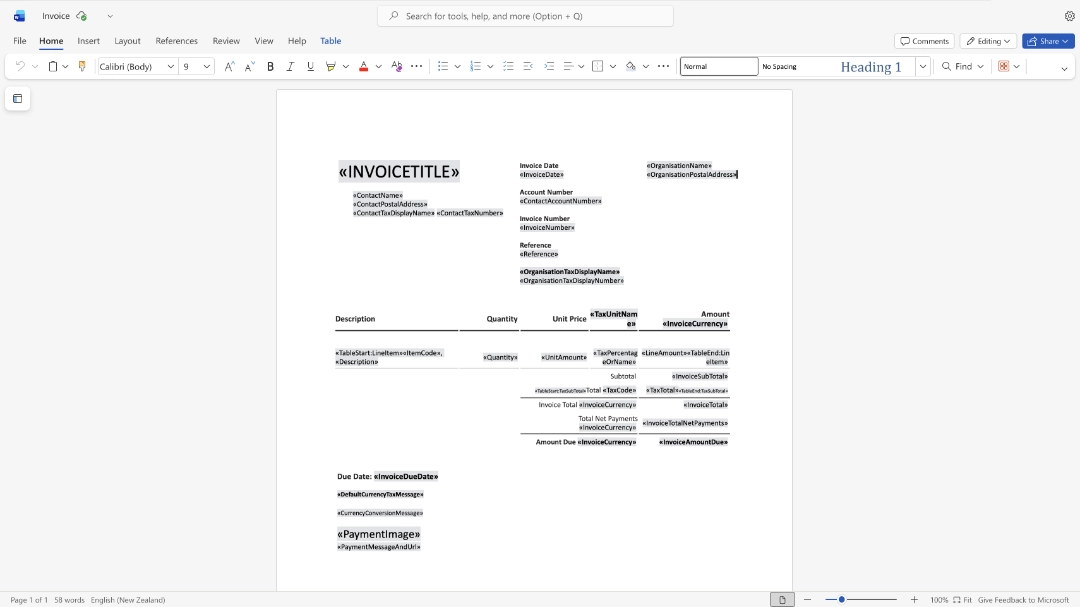
Xero’s default .docx invoice template being edited in Microsoft Office
Create a Custom Invoice Template
Understanding Microsoft Word Mail Merge Fields
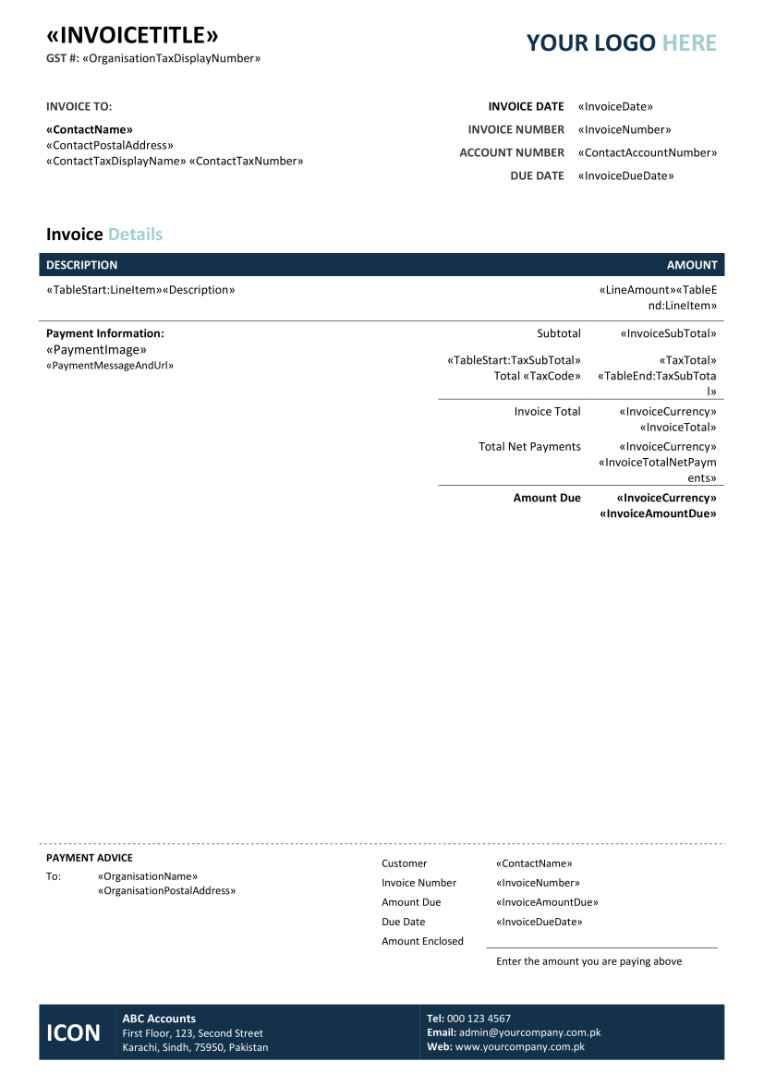
Advanced templates use mail merge fields, which act like placeholders that automatically pull data from Xero into your document.
For example:
- Invoice number
- Customer name
- Invoice date
- Line items and totals
These fields are inserted into your Word document and replaced with real data when the invoice is generated. Xero provides a library of available fields when you download a starter template.
Download the Starter Kit
Log into your Xero account and head to:
- Settings → Invoice settings
- Select New Branding Theme
- Select DOCX and give it a name
From there, you can either download the DOCX template pack or upload your file once it has been customised.
You can also create multiple branding themes for different purposes, such as retail invoices, project work or wholesale customers.
The starter kit also includes templates for credit notes, purchase orders, quotes and statements. They can be customised the same way too.
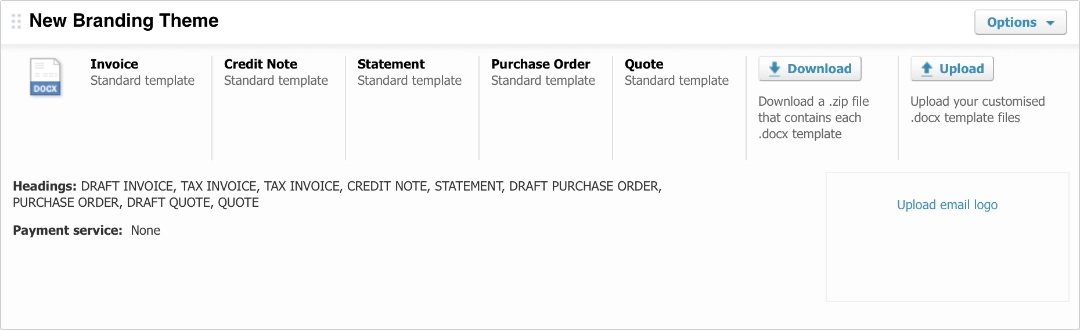
Download custom .docx templates in Xero
Edit Invoice Templates in Word
Once downloaded, open the DOCX file in Microsoft Word and customise it to suit your business.
This can include:
- Changing fonts, colours and layout
- Adding your logo and branding
- Reformatting tables and line items
- Including payment instructions and terms
You can insert or remove mail merge fields depending on the information you want shown on the final invoice.
You’ll need a Microsoft 365 subscription and the desktop version of Microsoft Word to properly edit mail merge fields. The online version of Word does not support this. While DOCX files may open in Google Docs or Apple Pages, they do not reliably preserve Xero’s merge fields.
Library of Short Codes (Fields)
Xero provides a library of field codes that can be used throughout your template. These fields let you dynamically populate:
- Customer details
- Invoice data
- Totals and tax amounts
- Notes and references
- And more
Using these correctly is the key to building a functional template.
You can view the full library of merge fields on Xero Central.
Uploading and Using Your Template
After editing your template:
- Upload the DOCX file back into Xero where it was originally downloaded
- Select that branding theme when creating your next invoice
The template is applied when the invoice PDF is generated, not while you are entering the invoice itself.
Pre-Made Templates and Design Options
If you don’t want to design a template from scratch, there are pre-made options available that can save a lot of time.
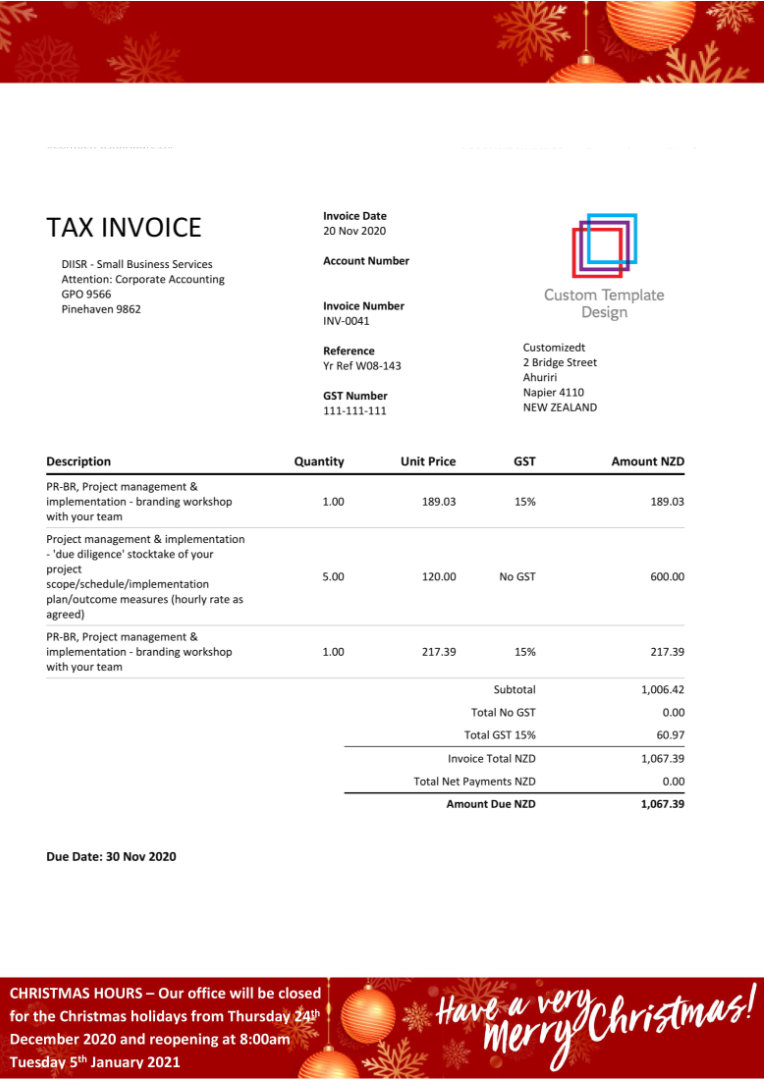
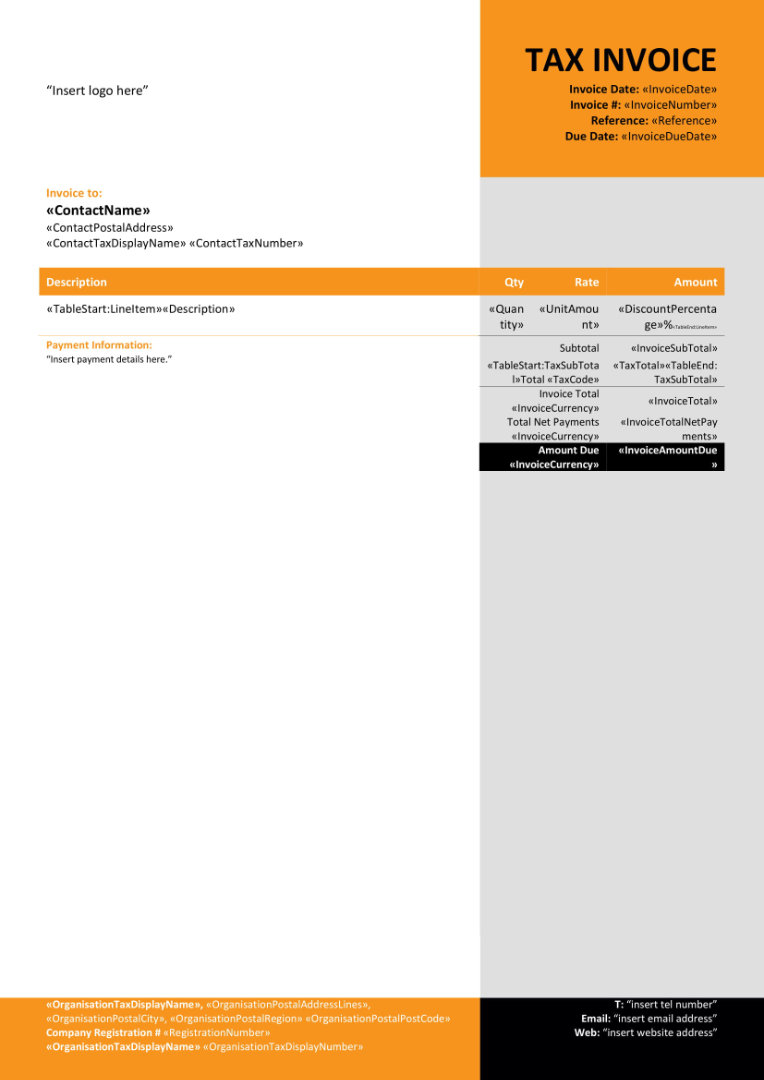
Many providers offer professionally designed templates that can also be adapted for quotes, statements and purchase orders, helping you keep a consistent look across your outgoing documents.
These providers often offer:
- Professionally designed layouts
- Industry-specific templates
- Branded document packs
For many businesses, this is the most practical and affordable way to get a polished result without having to build everything yourself.
Below are just some of the Xero template designs offered by customizedt.com
Setting up advanced templates can be time-consuming, especially when working with Word mail merge fields and formatting.
We can help you set up and customise your templates so they look professional and include the fields your business actually needs.
Just reach out to us and contact us.