
Giving the right people access to your Xero file sounds simple, but this is one of those areas where small mistakes can create big problems. Too much access, and things get changed unintentionally. Too little, and work slows down. We’ll go over how to do it properly.
Who can invite users to Xero?
Only users with the correct permissions (typically Standard + Manage Users or Advisor roles) can invite others.
If you’re unsure whether you have access, check your role under: Settings → Users
Invite Team Members to Xero
Before you start clicking buttons, pause for a second, this part matters more than the setup itself.
Step 1: Confirm they actually need access
Not everyone needs to be inside Xero. For example:
- Managers might only need to view and publish reports
- Staff managing payroll would need payroll access
- Sales would need to create invoices
Step 2: Choose the right permission level
This is where most issues happen. A few common setups:
- Payroll admin → payroll access
- Accounts staff → invoicing + bills + bank accounts
- Managers → reports
- General staff → no access required
The goal is to provide the minimum access required to do the job.
Step 3: Send the invite
In Xero:
- Go to Settings → Users
- Click Invite a User
- Enter name and email
- Assign permissions
- Send invite
They’ll receive an email to set up their login.
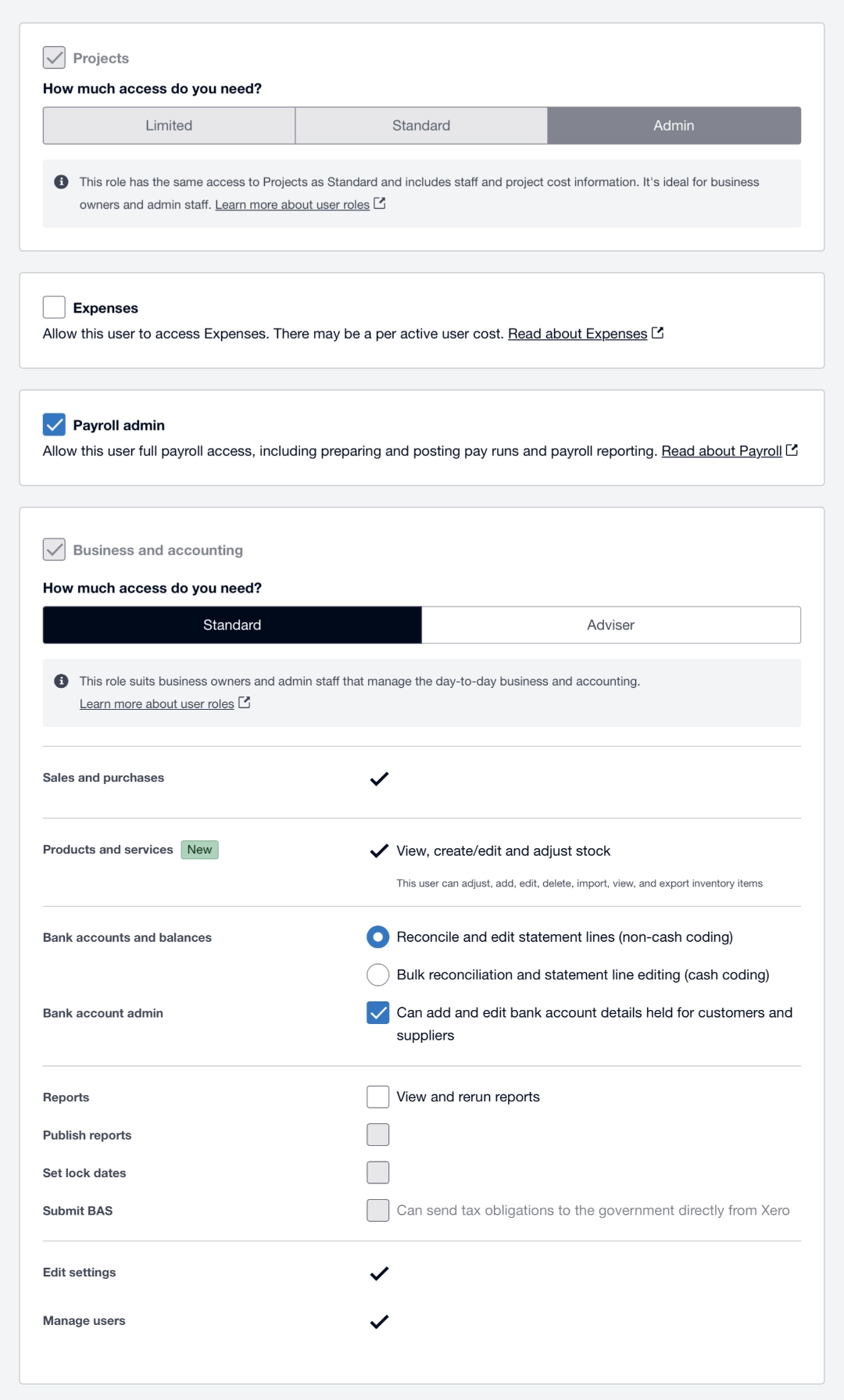
Xero User Permissions - Updated April 2026
Invite Advisors to Xero
This is where things get a bit more nuanced. Not every advisor needs full access. Many advisors don’t need to log into Xero at all.
We provide our customers with regular reports including an end of year profit and loss statement and balance sheet. This may be all that’s required from your accountant so you can just forward these on.
Option 1: Reports-Only Access
Some financial planners and accountants may only want access to view and create custom reports. They may need data to create budgets or analyse business performance. If that’s the case you can provide them with reports only access so they can view reports and export data without making changes. This keeps your file safe while still giving visibility.
Option 2: Advisor Access (Accountants)
This option is best for when your accountant requires full access to your Xero file so they have the ability to make adjustments and post journals. This is powerful access and many accountants will need it to perform their services.
If you’re working with Balanceable, let us know when you’ve invited your accountant or if you’d like us to set this up. It helps ensure we can coordinate with them when required.
How to Add an Advisor in Xero
- Go to Settings → Users
- Click Invite a User
- Enter their details
- Select Advisor role
- Send invite
A Quick Note on Permissions
Xero permissions are flexible but not always intuitive. If you’re unsure:
- It’s better to start with less access
- You can always increase permissions later
- Fixing mistakes is harder than preventing them
Keep your Xero file clean and controlled
User access is one of the easiest ways to protect your data (or accidentally break it).
Done properly, it:
- Reduces errors
- Improves accountability
- Keeps your books audit-ready
Done poorly, it leads to:
- Misposted transactions
- Payroll mistakes
- Messy year-end cleanups
Need help?
If you’re unsure who should have access (or what level), just ask. We can set up users for you, recommend permission levels and liaise directly with your accountant.
Resources
Xero Central: Add a new user to your organisation
Xero Central: Find and change assigned user roles
Updated: 20 April 2026