Why Bank Feeds Matter
Xero was one of the first platforms to bring direct bank feeds into accounting software. Today, that’s not a bonus feature. It’s the foundation.
Bank feeds automatically import your transactions into Xero, giving you up-to-date financial data, faster reconciliations, and less manual data entry with fewer errors.
Built for Automation
Xero was built with automation at its core. Once your feeds are active, you can get the benefit of:
- Bank rules to auto-code transactions
- Matching transactions against source documents
- Bank reconciliations with fewer (if any) discrepancies
This is where bookkeeping becomes faster, cleaner, and far more reliable.
Types of Bank Feeds
Not all feeds work the same way. Xero supports different connection types depending on your bank:
- Direct feeds (automatic connection)
- Yodlee feeds (third-party connection)
- File upload (manual fallback)
You can view the full list of banks that offer bank feeds here:
https://central.xero.com/s/article/Bank-feeds#Bankfeedtypes
Adding and Activating Bank Feeds in Xero
1: Add Your Bank Account
Before connecting a feed, your bank account needs to exist in Xero.
If you’ve just migrated from another software to Xero, this step has likely already been completed as part of the service.
- Go to Accounting → Bank Accounts on your Xero dashboard
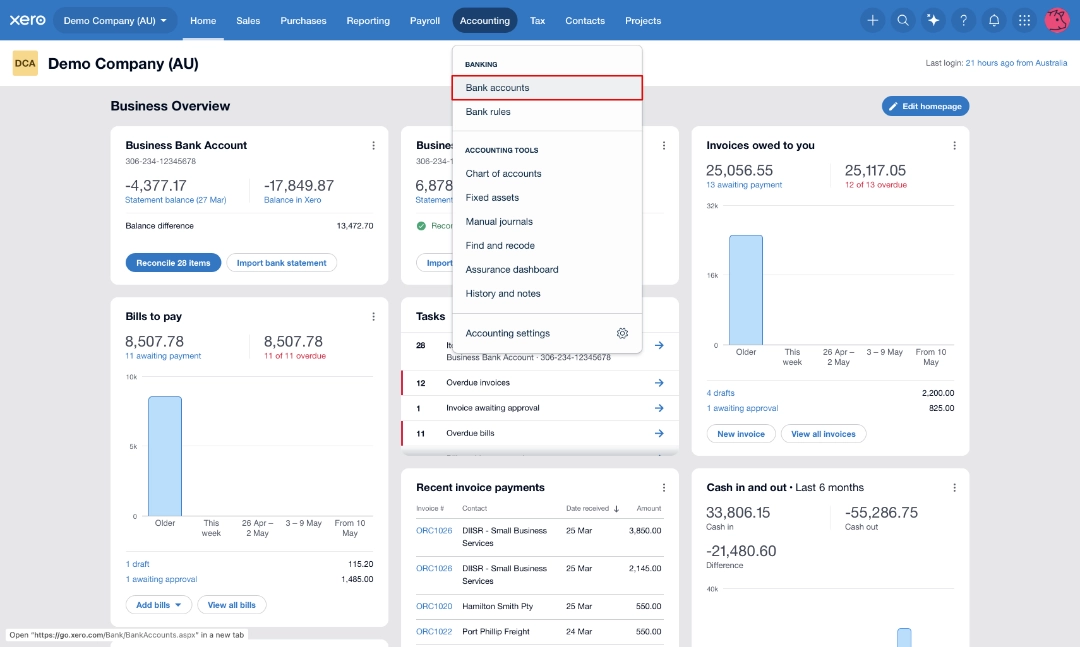
Select 'Bank Accounts' from the menu on the Xero Dashboard
- Click Add bank account
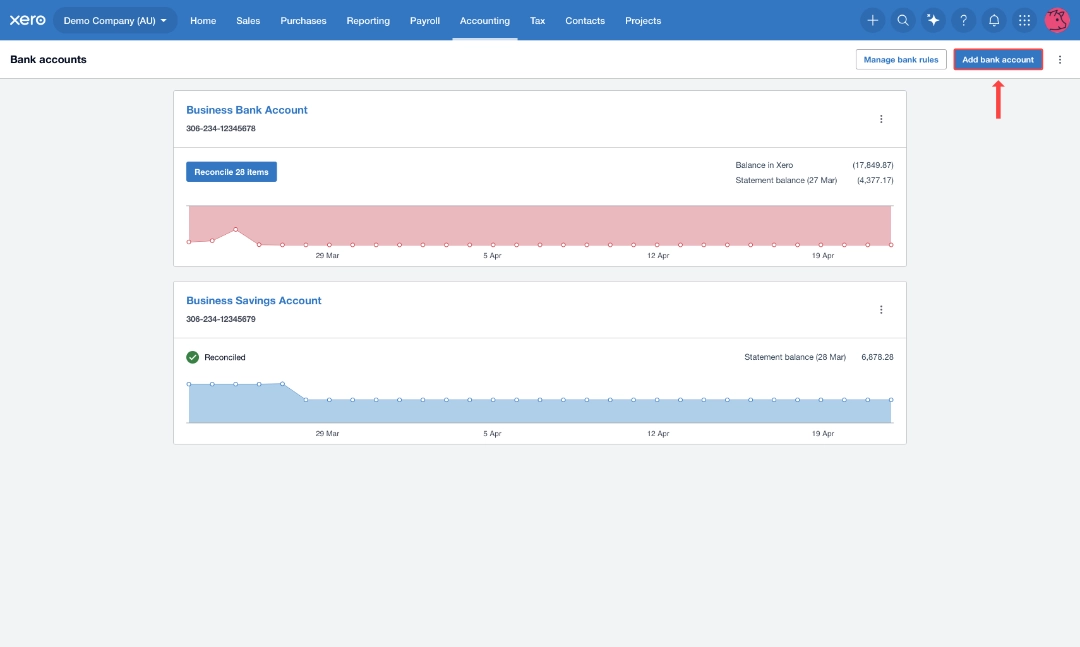
List of bank accounts inside Xero
- Search for your bank
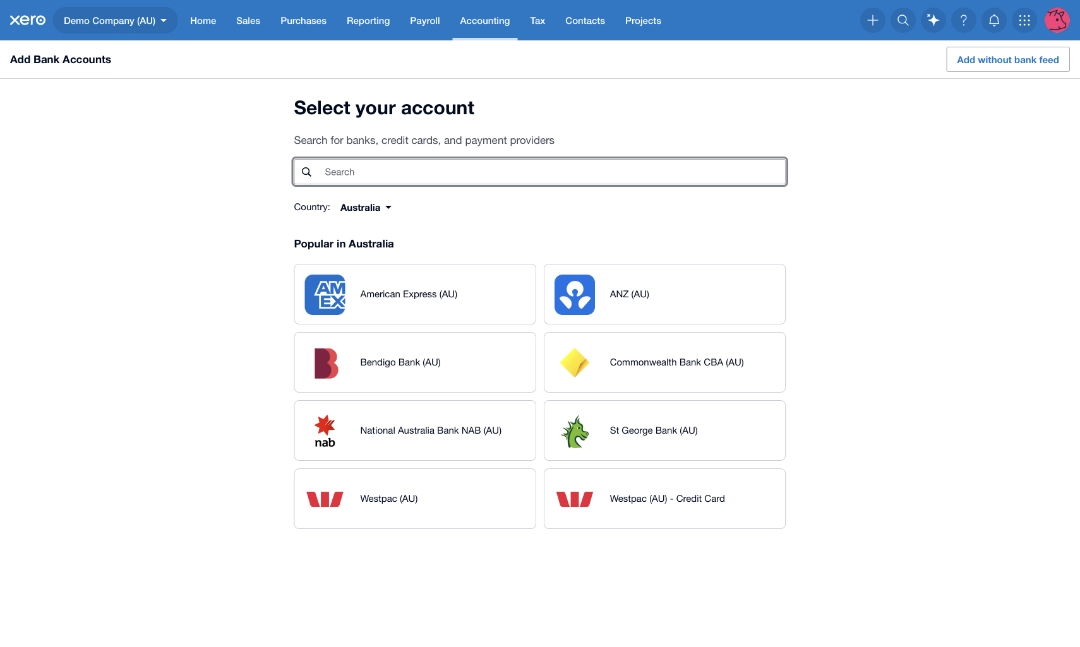
Select bank account inside Xero
- Enter your bank account details if prompted and continue to option A or B below in Step 2 depending on the activation type.
2: Connect Your Bank Feed
If you already have bank accounts set up in Xero without active bank feeds:
- Go to the Xero dashboard and look for the bank accounts without an active feed
- Click “Connect available bank feed”
If the account you want is not on the dashboard go to 'Accounting > Bank Accounts' for the full list.
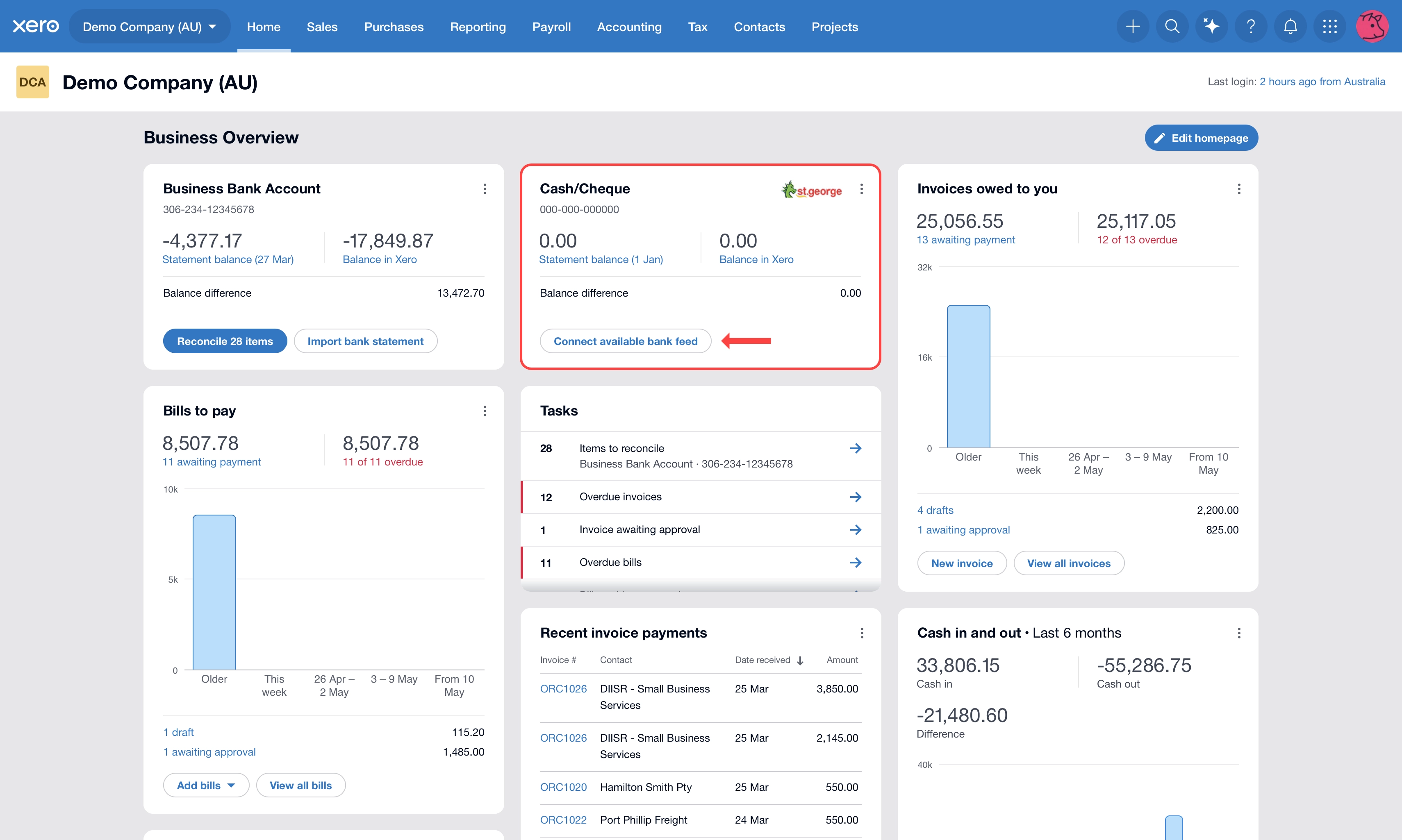
Bank account without an active bank feed on the Xero dashboard
From here, you’ll see one of two options.
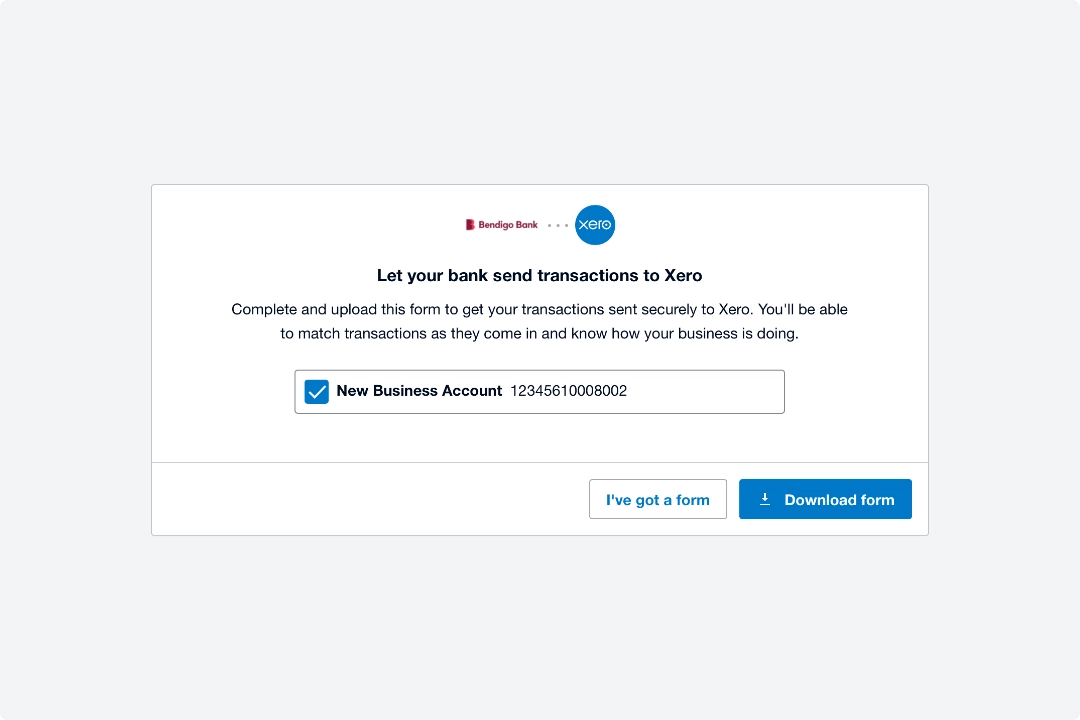
A: Authorisation form required to activate bank feed
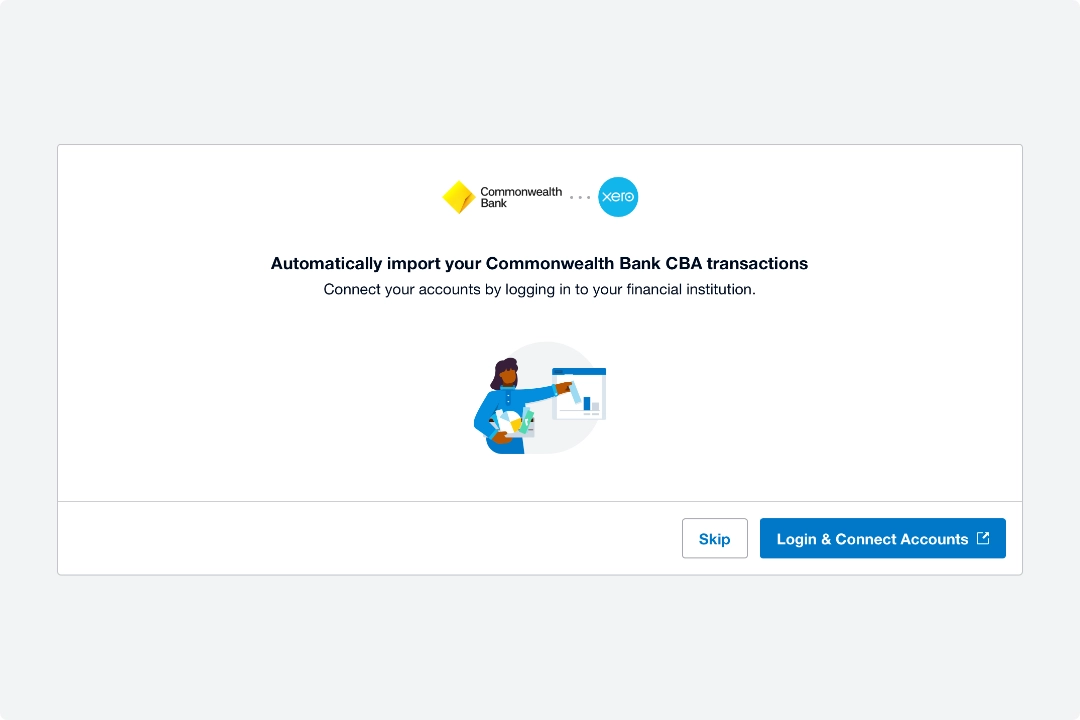
B: Log in to your bank account to activate bank feeds
Option A: Form Method
- Select “Download form”
- Fill out all the questions in the PDF
- Upload the completed authorisation form
That’s it. The bank will activate your feed, usually within a few days.
Option B: Log-in Method (Most Common)
- Click “Log in and Connect Accounts”
- Sign in to your bank
- Select the accounts you want to connect – only select business-related accounts
- Once connected, you’ll return to Xero and match your bank accounts to the correct Xero accounts
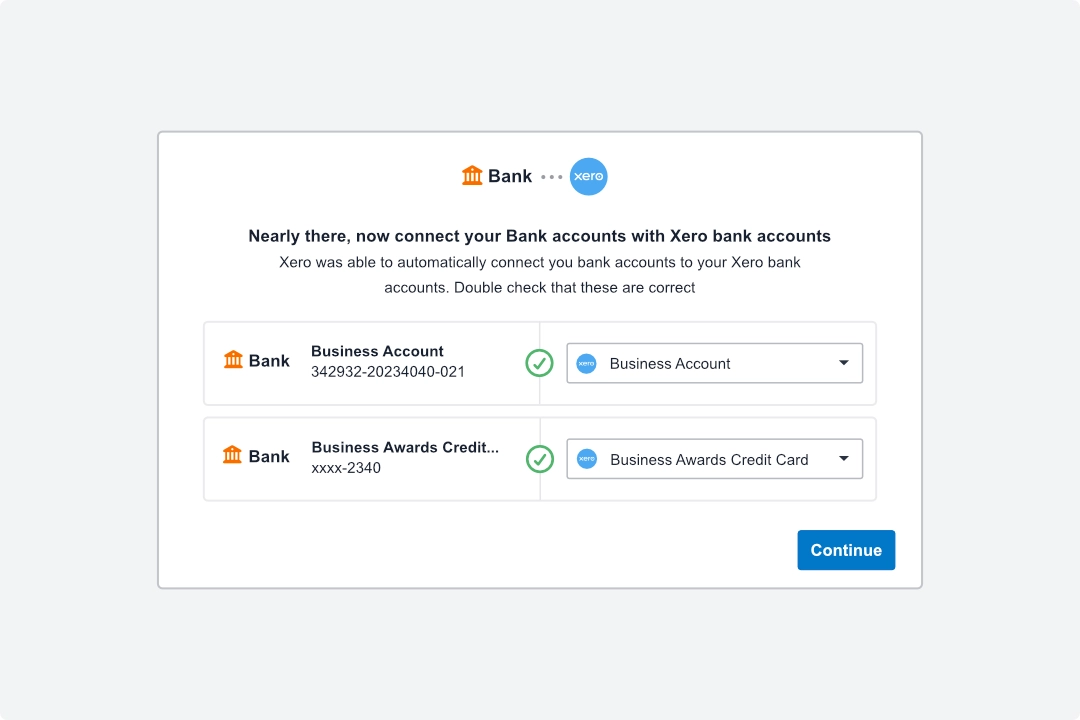
Match the correct bank feed to bank account in Xero
Note: When you have multiple bank feeds to connect from the same institution, you will actually be connecting them all at once. There’s no need to go through these steps repeatedly to set them up individually.
What Happens Next?
If you connected your bank via the log-in method, then you should start seeing new transactions flowing into Xero usually within 24–48 hours.
If you used the authorisation form to activate your bank feeds, then you will typically have to wait a few business days for it to be activated. Transactions will start flowing into Xero automatically.
If Your Bank Isn’t Supported
This is rare, but if your bank doesn’t support direct feeds you will have to download your transactions from your bank directly in CSV format (.csv) and upload them directly into Xero.
It’s not as seamless, but it still works and is still the norm for many businesses across the world.
Need Help?
If any of this feels unclear or time-consuming, you’re not alone. We set this up for clients all the time and once it’s running properly, everything else in Xero becomes much easier.